STEP-BY-STEP GUIDES
Your maps, projects and team
Start at opnearth.com/account. Use the portal to organise and share your work. Open the web or desktop app to work on the map itself.
Screenshots use a demonstration organisation. Your menu depends on your active plan and permissions. Updated October 8, 2026.
Files in the web app
Adding a file to the web app uploads a private copy to your cloud storage. Your original local file is not changed. Files up to 95 MB are supported, within your account’s storage allowance. A KML file is compressed to a KMZ as it uploads, so most larger KML files fit.
- Open the web app and add or drop a map file.
- Wait for the Uploaded message, then edit the map.
- Click Save to update the cloud copy. Keep the tab open until Saved appears.
- Use Cloud files or Account → Storage to reopen, download or delete a file. Download original keeps the exact initial upload: for a KML, the KMZ it was uploaded as.
Opening a file does not publish or share it. Cloud storage keeps the original and latest saved copy. If saving fails, your changes remain open in the tab; retry before closing it. Export / Save as downloads a separate copy.
Find your way around
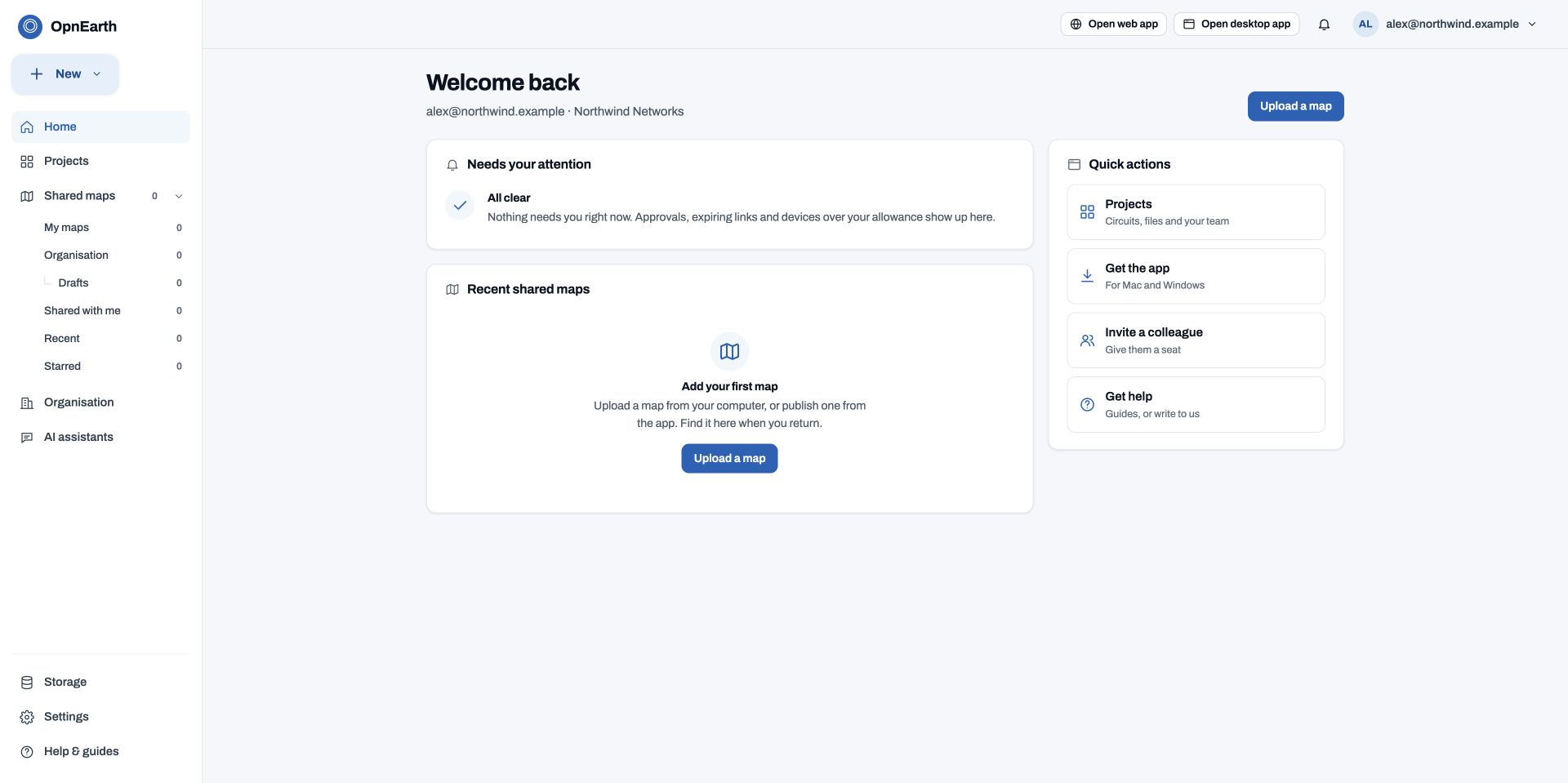
- Use Home for recent maps and items needing attention.
- Use New at the top of the left menu to upload a map, create a project or add to the Team library.
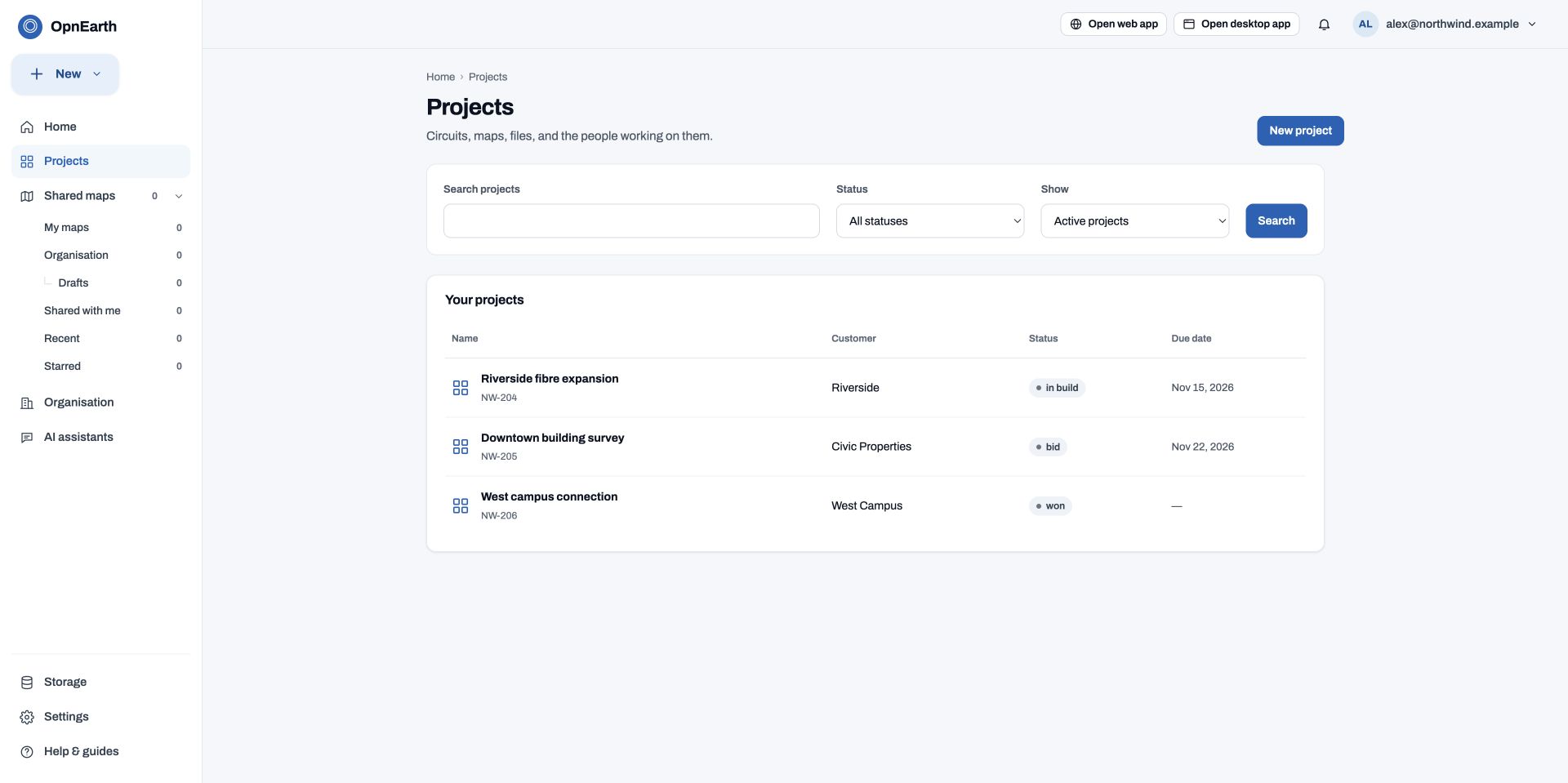
- Use Projects to keep a job’s maps, files, discussion and people together.
- My maps, Shared with me and Projects are separate sidebar destinations. Recent and Starred are shortcuts below them.
- Open web app and Open desktop app sit before the bell in the top-right header. On a phone they appear as icons; the menu button opens navigation.
Upload a map
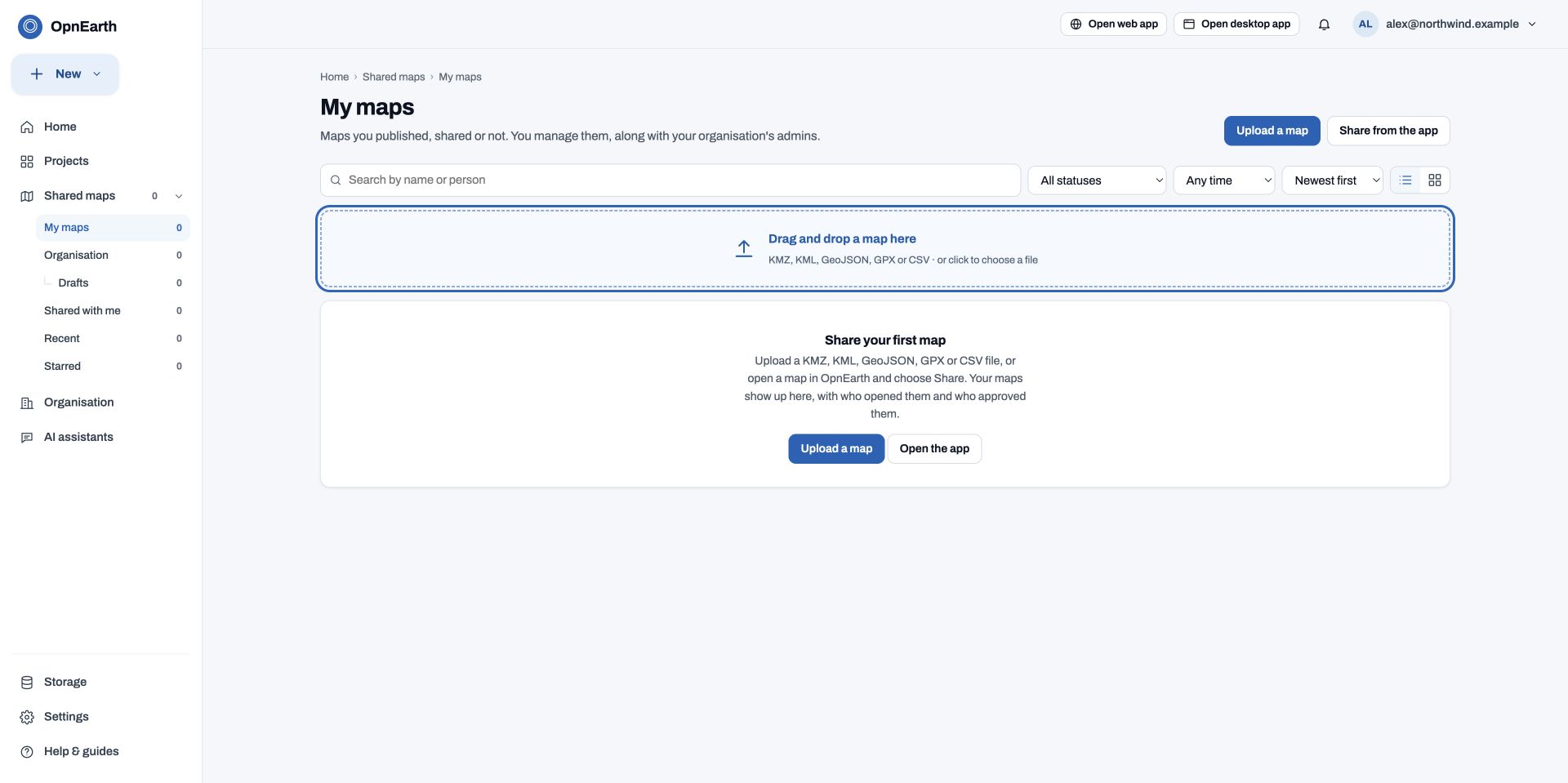
- Choose New → Upload a map, or open My maps.
- Drop a KMZ, KML, GeoJSON, GPX or CSV onto the dashed upload area. You can also click the area to choose a file.
- Wait for reading and upload to finish. If it fails, use the error message and Try again or Choose another file.
- Open the uploaded map’s details to manage its sharing. Uploading and sending somebody a link are separate actions.
Team library or project?
Open Team library · Open Projects · Requires active Enterprise access.
Use the Team library for networks your whole organisation uses. Use a project for one job or customer bid.
| Team library | Project | |
|---|---|---|
| What it holds | One current copy of each network, with its earlier versions. KMZ, KML, GeoJSON or GPX, up to 250 MB. | The maps, files, circuits, discussion and reviews for one job or bid. |
| How long it lasts | As long as your organisation uses it. The current version is always kept; earlier versions stay unless an administrator sets a retention period. | For the job. Give it a status and due date, then archive it when the work is done. |
| Who sees it | Everyone in your organisation with app access can read it. Administrators choose who can upload. It is never shared with other organisations. | The people and groups you add, plus partner organisations you invite. Your administrators always have access. |
| Typical use | The networks everyone works from. Open them from the desktop app’s File menu, even offline once downloaded. | A customer bid or a build, shared with a contractor. |
Create a project
Go to New project · Requires active Enterprise access.
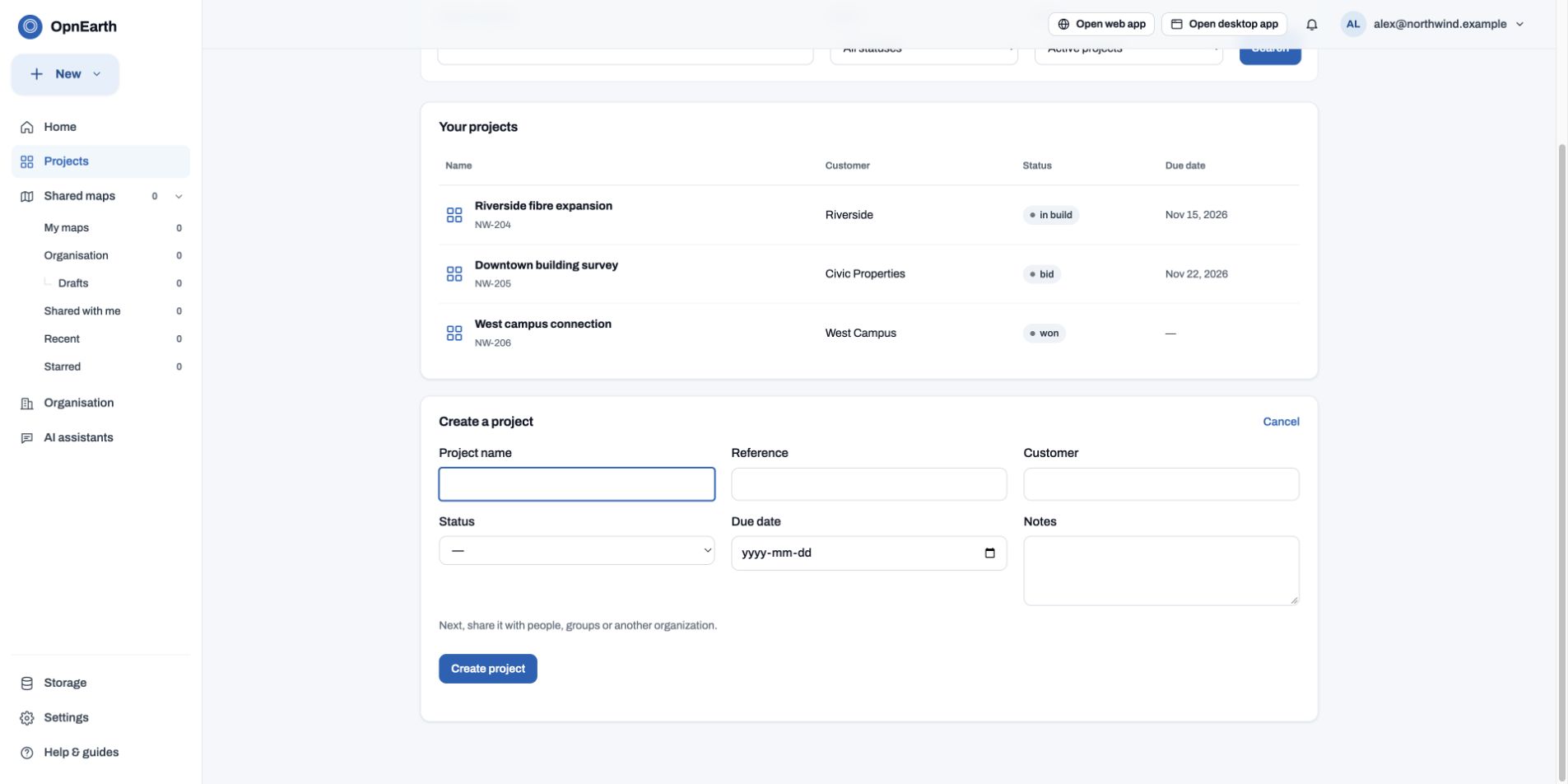
- Open Projects and choose New project. The creation form only opens when requested.
- Enter the project name. Add a reference, customer, status, due date or notes if useful.
- Choose Create project. The sharing dialog opens next.
- In the project, use Contents for maps and files, Circuits for circuit records, Discussion for comments, and Details to update the project.
See the project creation form
Share a project
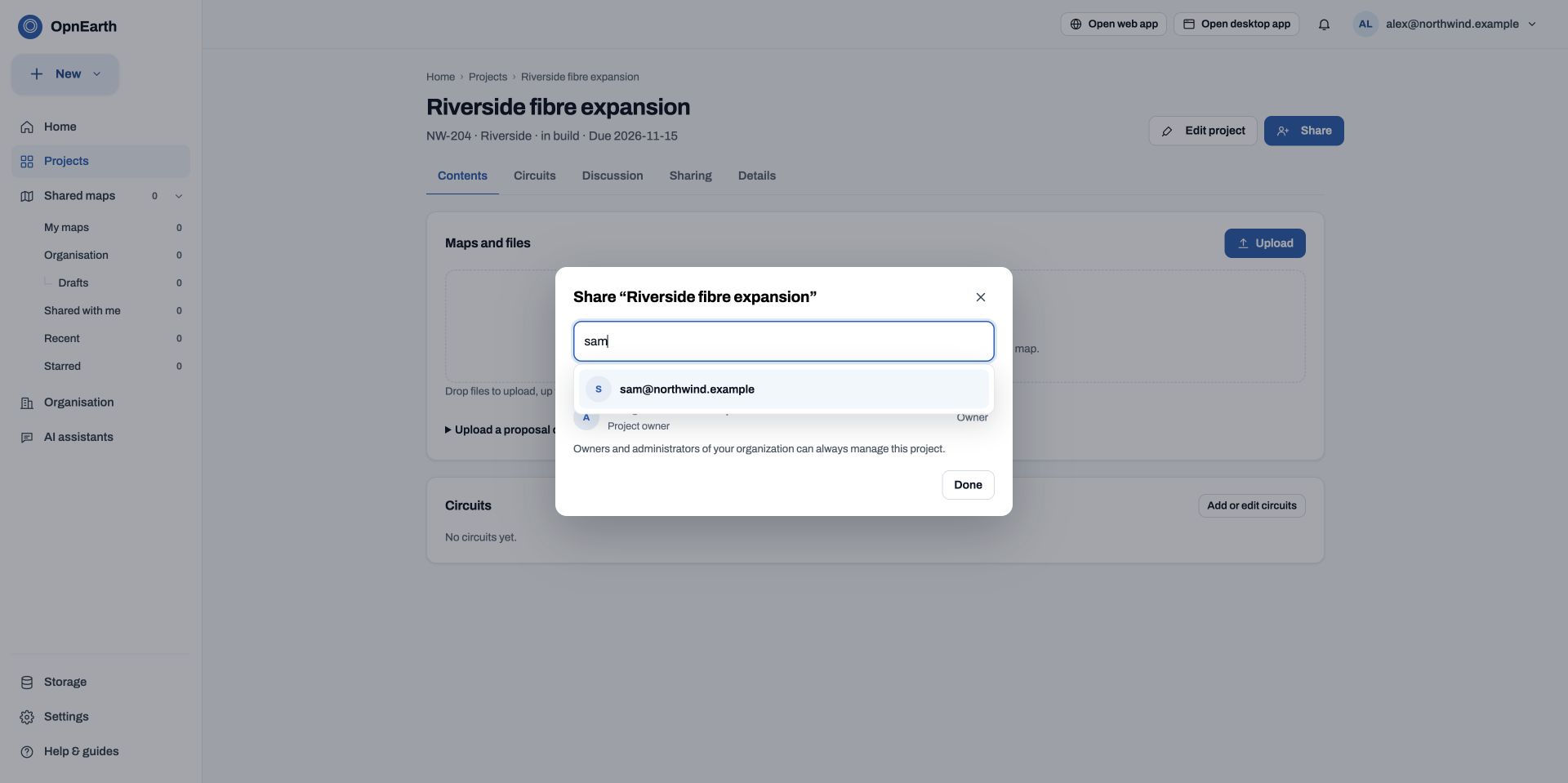
- Open a project and choose Share near its title.
- Search for a person or group. Select the result and choose their role.
- Use View for read and download, Comment for discussion, Edit for changes, or Manage for project details and access.
- Apply the change using the dialog’s action button. Review People with access afterwards.
- For another organisation, enter its administrator’s email. They accept the invitation while signed in with that email and active Enterprise access, then assign their colleagues access within the role granted.
You and your organisation’s administrators already have management access. You cannot invite yourself. Sharing a project does not make it public.
Find and share maps
- My maps: maps you published, whether shared yet or not.
- Shared with me: maps someone gave your email access to.
- Organisation and Drafts: team maps, when your account has Enterprise access.
- Recent and Starred: recently updated maps and your saved shortcuts.
- Search by name or person; narrow by status or date. Switch between List and Grid beside the filters.
- Open a map’s details to review its links, people, comments and approval state.
- Use the map’s sharing controls for recipients or a public link. Check access and expiry before sharing.
Project sharing, published map links and live editing are different workflows. For simultaneous editing, follow Working on a map together. For public links and approvals, follow Sharing a map.
Icons, storage and settings
- Settings → Icons: open the custom icon library. Upload and management depend on your role and enabled features.
- Storage: check your usage from the bottom of the left menu.
- Settings → Sharing & sync: sharing preferences, notifications and synchronization options.
- Settings → Licence and seats: check the active plan and licence.
- Settings → Devices: review connected computers.
- Organisation: team administration, according to your role.
Optional modules are separate add-ons. A plan name alone does not mean every module is enabled. See Modules for what each adds.
Connect an AI assistant
- Open AI assistants and choose the instructions for your assistant.
- Enable third-party MCP access in the desktop app’s AI Assistance settings.
- Follow the assistant’s connector setup, then sign in to the invited OpnEarth account and review the connection screen.
- If the connection request expires, start Connect again from the assistant. Requests last fifteen minutes.
The connection needs active Pro or Enterprise access. An offered trial that has not started does not grant paid access yet. The assistant’s connection does not remove the app’s confirmation before reading maps or making changes.
Review maps and files
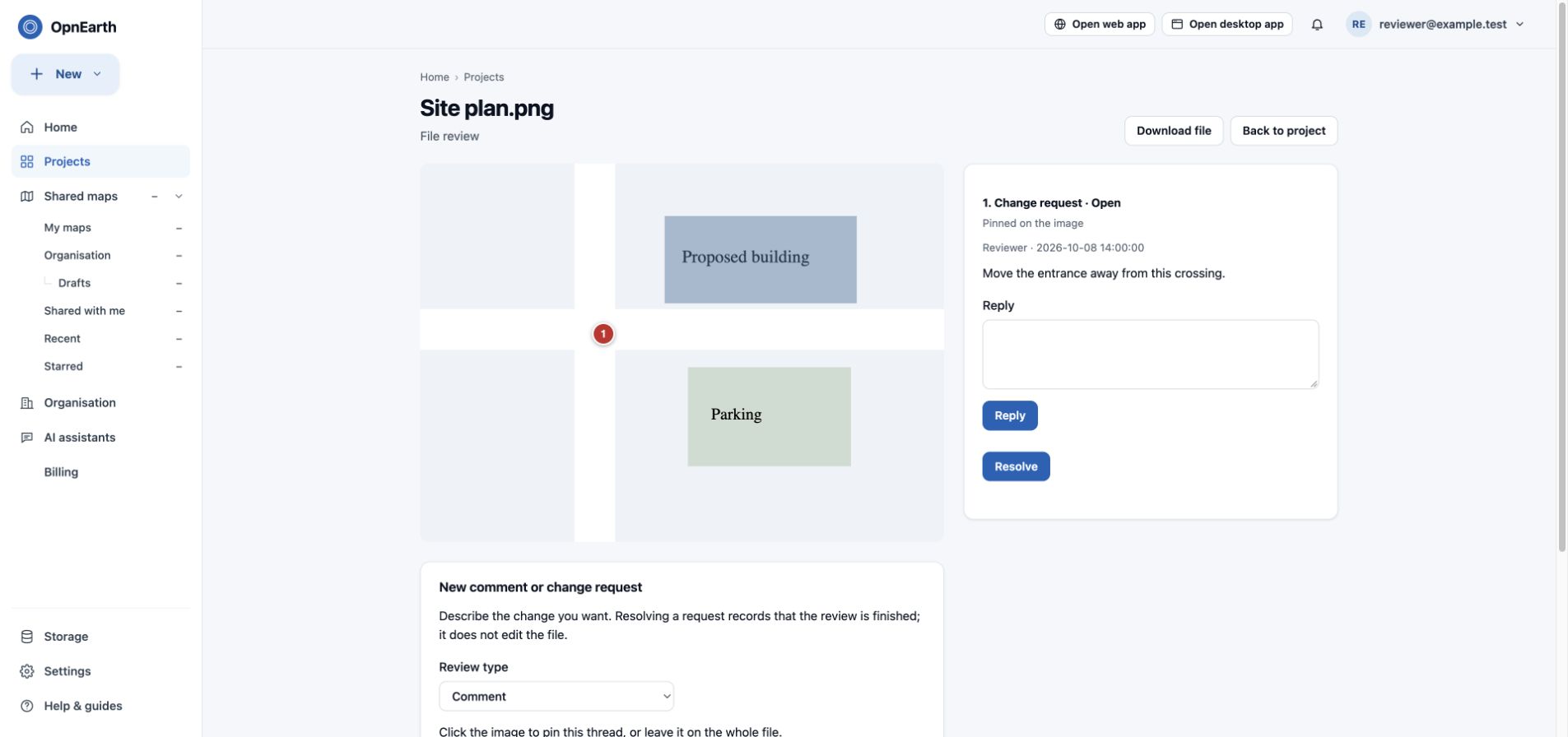
Open Projects → your project → Contents → Review comments beside a file. You can also find file reviews from Discussion; the general project conversation stays separate.
On a map, choose Add a pin or comment on a feature. On an image, click the preview to place a numbered dot. Choose Comment or Change request, describe the issue, and post it. Colleagues can reply, resolve and reopen threads. Other file formats have page-referenced threads alongside a download link.
Change requests record review feedback; resolving one does not modify the original file. Text replacement suggestions and automatic redline editing are not available.
Projects without circuits
A project can contain just maps and files, with sharing and discussion. Circuits are optional. To start using them, open the project’s Details → Optional tools → Add circuits. The Circuits tab and circuit selectors appear once a circuit has been added. Existing projects with circuits keep their circuit tools.
Administrative users and billing
Open Organisation → Members and choose an invitation role. Admin only manages the organisation without app access. Billing only manages billing without access to maps, projects or the app. Neither uses an app seat; invitations remain available when app seats are full. Only owners can invite admins. Owners and admins can invite billing users.
Open Billing in the sidebar to view invoices and manage payment details. Only owners, admins and billing users can open it. Accounts billed outside the online billing portal show contact instructions.
If something is blocked
I was given a licence but still see a plan message
Refresh the page, check the email in your account menu and open Licence and seats. A trial offer and an activated trial are different. If an administrator granted permanent access and it still appears inactive, contact support with your email and the blocked page.
I cannot see Projects or Organisation
These entries appear with active Enterprise access. Check your account and plan. Your organisation role also determines which management actions you can use.
I cannot find the menu on my phone
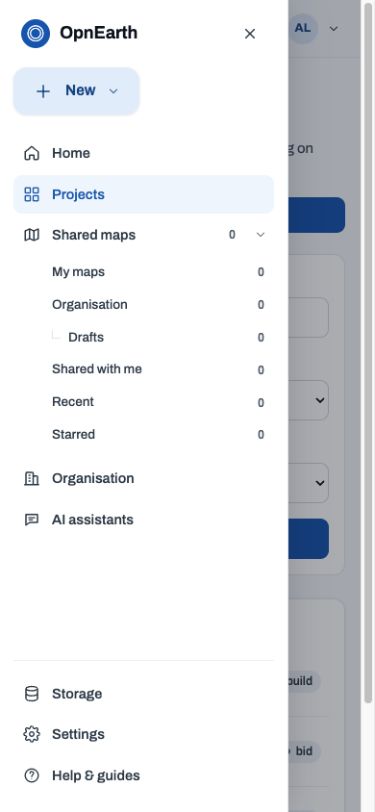
Use the menu icon at the upper left. Tap Close or press Escape to return to the page.
Where do I go back from the web map editor?
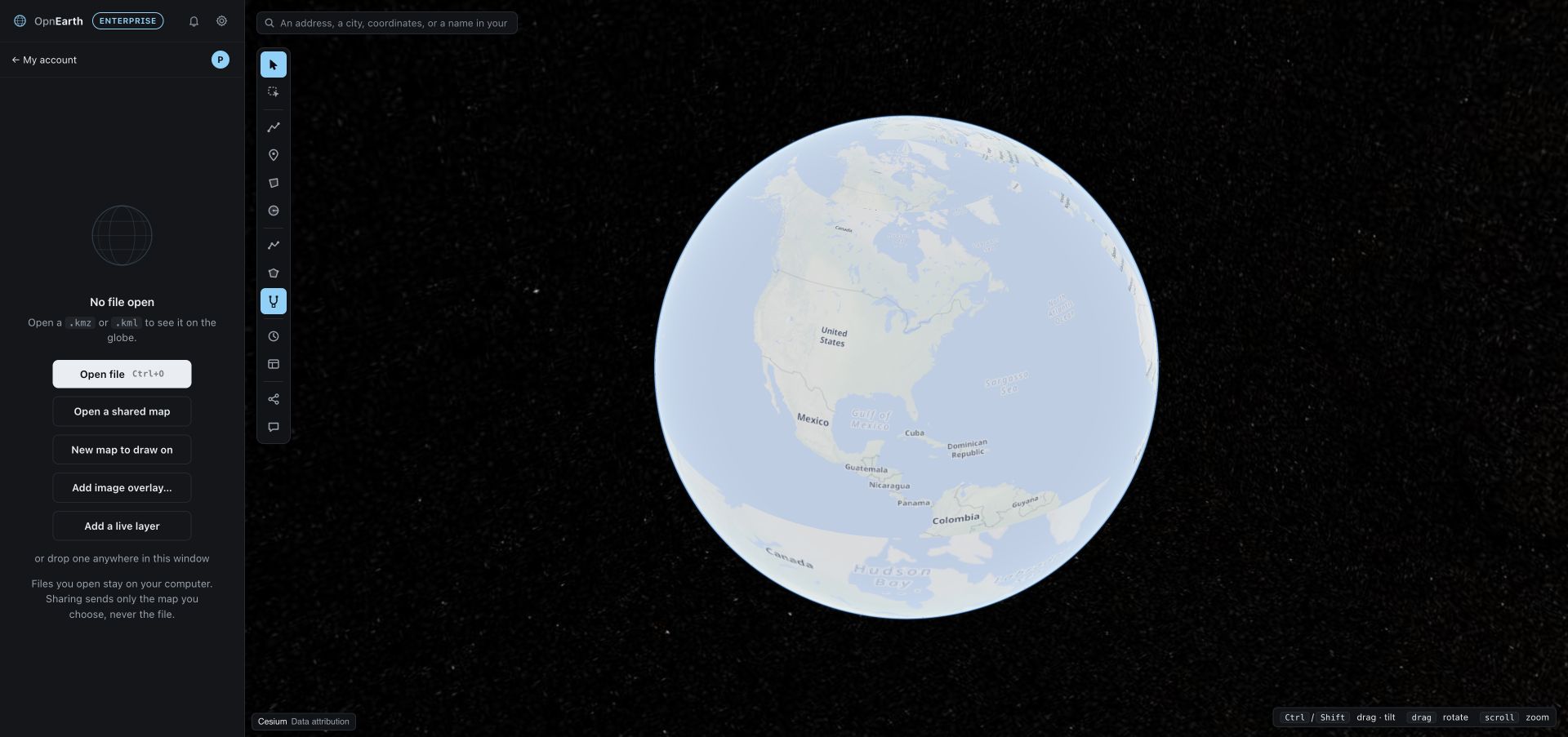
Use My account below the sidebar’s title bar to return to the portal.
Still stuck? Email [email protected] with the page, account email and a screenshot.